OrcA 0.3: See Every MCP Tool Call and LLM Round in VS Code

OrcA 0.3 lets you see exactly what your AI agent does with your MCP servers, without leaving VS Code. Chat with your servers using the model you already have, watch every LLM round and every MCP tool call in a live Git-style graph, and capture what GitHub Copilot or Claude send to your server. No telemetry, no extra app, no code changes.
TL;DR
- What: OrcA 0.3, a free VS Code extension of the HAPI MCP Stack.
- New: an MCP traffic analyzer, a chat with your MCP servers, and a local capture proxy for any MCP client.
- Why it matters: when an agent calls the wrong tool, sends bad arguments, or gets slow, you see the whole chain (prompt → LLM round → tool calls → results) on one screen.
- Install: search OrcA MCP in VS Code Extensions, or
code --install-extension la-rebelion-labs.orca-mcp.
The problem: agents are a black box
You built an MCP server. You connected it to Copilot. You asked a question, and the answer was wrong. Now what?
- Did the model see your tool at all?
- Which arguments did it send?
- Did the server answer with an error, or with data the model misread?
- Which of the three calls took four seconds?
- How many tokens did your 40 tool schemas cost on every turn?
Most teams answer these with console.log, a separate inspector app, and guesswork. The LLM half and the MCP half of the conversation live in different places, so you never see cause and effect together. OrcA 0.3 puts both halves on one timeline.
What's new in OrcA 0.3
📡 MCP Traffic: every message, as a Git graph
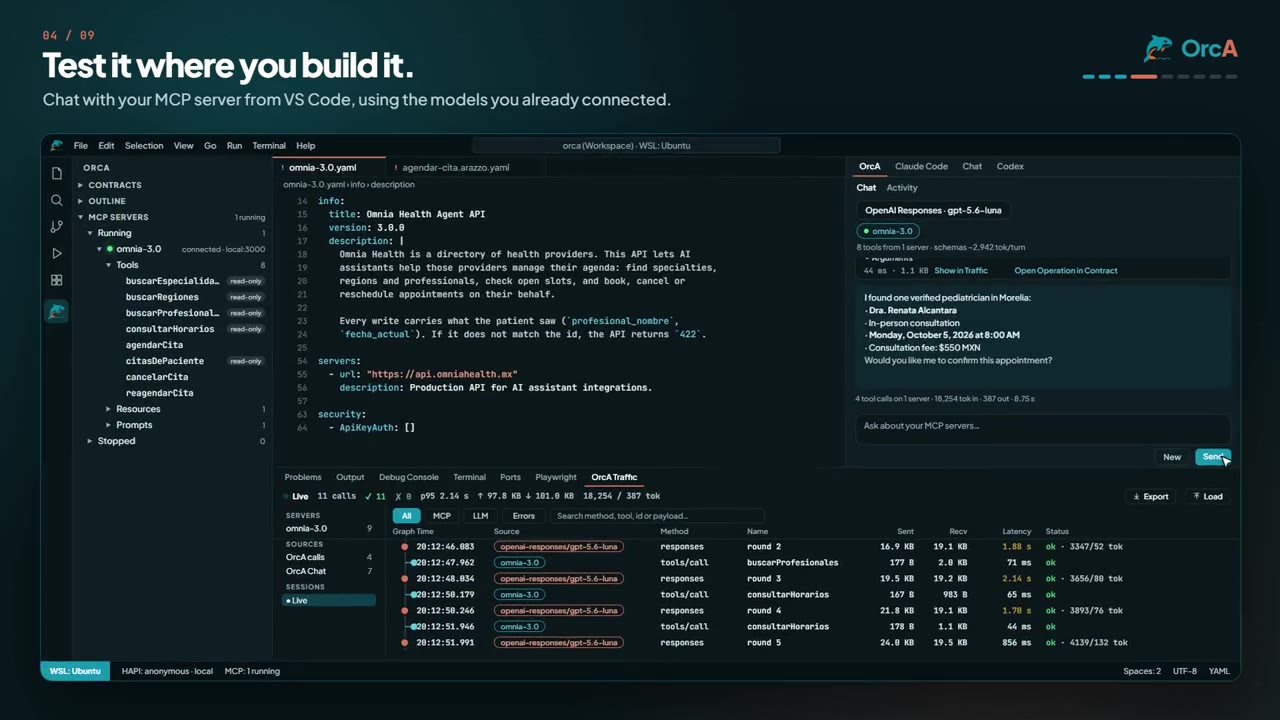
OrcA Traffic is a new view in the bottom Panel (or an editor tab). Each row is one exchange: an LLM round, an MCP request with its response, or a notification.
The graph column works like Git history: one lane for the LLM and one per server. An LLM round forks to the tool calls it caused, and the next round merges them back. You see at a glance that round 2 called getPetById on petstore and search_issues on github, which one failed, and how long each took.
From any row you can:
- Open Request / Open Response as read-only JSON in a regular editor.
- Compare with Previous Call in VS Code's diff editor, to see what changed between two calls of the same tool.
- Copy as cURL, with credentials replaced by shell variables.
- Replay the request; tools that may change data ask first.
- Open Operation in Contract: jump from a tool call to the OpenAPI operation or Arazzo workflow behind it, at its exact line.
Filter by MCP, LLM or Errors, search across payloads, narrow by server or client, and keep an eye on the live totals: calls, errors, p95 latency, bytes, tokens and cost. Save a session to a .orca-traffic.json file to share it with your team or attach it to a bug report.
💬 Chat with your MCP servers
The Secondary Sidebar has a new OrcA view with a Chat tab. Connect your servers in MCP Servers, choose a model, and ask.
- No API key needed with VS Code's language models (for example GitHub Copilot's).
- Or use OpenAI (Chat Completions or Responses), Anthropic, Groq, OpenRouter, Ollama, LM Studio, or any OpenAI-compatible endpoint.
- Every tool call appears as a card with the server, arguments, status, latency and size.
- Tools that are not marked read-only ask first: Allow Once, Allow for This Session, or Deny.
- Each answer ends with a summary, for example 2 tool calls on 2 servers · 3,902 tok in · 214 out · 2.1 s · $0.01.
- The header shows how many tools you are offering and roughly how many tokens their schemas cost per turn, the hidden tax of large tool catalogs.
It is the fastest way to answer "can an agent actually use my API?" before you wire it into a product.
⇄ Capture Copilot, Claude, and any MCP client
Your users won't use OrcA's chat; they'll use Copilot, Claude, Cursor or their own agent. To see what those clients send, right-click a server and choose Expose via Proxy.
OrcA starts a local proxy at http://127.0.0.1:7331/mcp/<server> (loopback only) that forwards everything to your server and streams responses through untouched. Add to VS Code now offers Through OrcA (captured), which writes that address to .vscode/mcp.json. Use Copilot as usual; every request appears in OrcA Traffic as petstore ⇄ Visual Studio Code.
🔌 A real MCP client for your servers
Connecting is explicit and works with several servers at once. A connected server expands into its Tools, Resources and Prompts, with read-only markers. Bearer tokens and other headers are stored in VS Code's secret storage. Dropped connections are retried automatically, and servers that return a malformed list (it happens) are still usable: OrcA skips that list and tells you.
OrcA 0.3 compared with the usual workflow
| Question | Without OrcA | With OrcA 0.3 |
|---|---|---|
| Which tool did the model call, with what arguments? | Logs on the server, if you added them | Tool card in the chat and a frame in Traffic |
| Which LLM round caused which tool calls? | Not visible | Fork and merge lines in the Traffic graph |
| What does Copilot send to my server? | Not visible | Capture proxy, frames labeled with the client name |
| Did a change break a tool's output? | Re-run and eyeball | Compare with Previous Call in the diff editor |
| How much do my tool schemas cost? | Count by hand | Estimated tokens per turn in the chat header |
| Where is this tool defined? | Search the spec | Open Operation in Contract, exact line |
How to debug an MCP server in VS Code (2 minutes)
- Install OrcA from the VS Code Marketplace.
- Run your API: open an OpenAPI or Arazzo file and click Run with HAPI (or use any running MCP server listed in MCP Servers).
- Connect: right-click the server → Connect. Its tools appear underneath.
- Chat: open OrcA → Chat, click the model button to pick a model, and ask a question that needs your API.
- Inspect: run OrcA: Show Traffic. Click the LLM round, then the tool calls it caused. Open a response, compare it with the previous call, or copy it as cURL.
Private by design
Debugging tools see everything, so they must be trustworthy:
- No telemetry and no analytics code. No vendor AI SDKs: providers are called with plain HTTP.
- The chat only contacts the provider you selected (or VS Code's own models).
- Traffic stays in memory (the last 5,000 frames), with authorization headers, tokens, passwords and API keys redacted.
- API keys and server headers live in VS Code's secret storage, never in settings.
- The proxy listens on 127.0.0.1 only and never adds your stored credentials.
- Nothing is written to disk until you choose Save Session….
Good to know
- OAuth-protected MCP servers are detected but not supported yet; static headers (for example a bearer token) work today. OAuth is next.
- The Activity view moved into the new OrcA view as a tab, next to Chat.
- If a provider rejects tools combined with a reasoning effort on Chat Completions (some OpenAI models do), choose OpenAI (Responses) in Select Chat Model… or clear
orca.llm.reasoningEffort.
Frequently asked questions
How do I debug an MCP server in VS Code? Install OrcA 0.3, Connect to the running server from MCP Servers, and run OrcA: Show Traffic. Every request, response and notification appears with latency, size and status, and you can open, diff, copy and replay each one.
How can I see what GitHub Copilot sends to my MCP server? Use Expose via Proxy, then Add to VS Code → Through OrcA (captured). Copilot talks to the local proxy, and each request shows up in OrcA Traffic with the client name.
Can I chat with my MCP server without an API key? Yes, with VS Code's language models (such as GitHub Copilot's). Other providers need their own key, stored in VS Code's secret storage.
Is OrcA an alternative to MCP Inspector? For everyday work inside VS Code, yes: several servers at once, the catalog, an LLM chat, and LLM rounds plus tool calls correlated in one graph, plus capture of other clients. Calling a single tool by hand from a form comes in a later release.
Does OrcA send my data anywhere? No. There is no telemetry; the chat talks only to the provider you chose, and traffic never leaves your machine unless you save and share a session file.
Get OrcA 0.3
- ⬇️ Install: OrcA MCP on the VS Code Marketplace, or
code --install-extension la-rebelion-labs.orca-mcp. - 📘 Guide: VS Code extension (OrcA).
- 🧭 Concepts: How OrcA works, including connections, chat and traffic.
- 🆕 New to OrcA? Start with the 0.2 announcement: OrcA for VS Code: From OpenAPI and Arazzo to MCP Server.
Your agent is only as good as the conversation it has with your tools. Now you can see that conversation.
Be HAPI, and enjoy building!