OrcA for VS Code: From OpenAPI and Arazzo to MCP Server, Without Leaving Your Editor

Your API contracts live in your editor. Until today, your MCP servers lived somewhere else: a terminal running a CLI, a browser tab with a console, a dashboard for deployments, and a doc page you kept re-reading. OrcA puts that whole journey in one place.
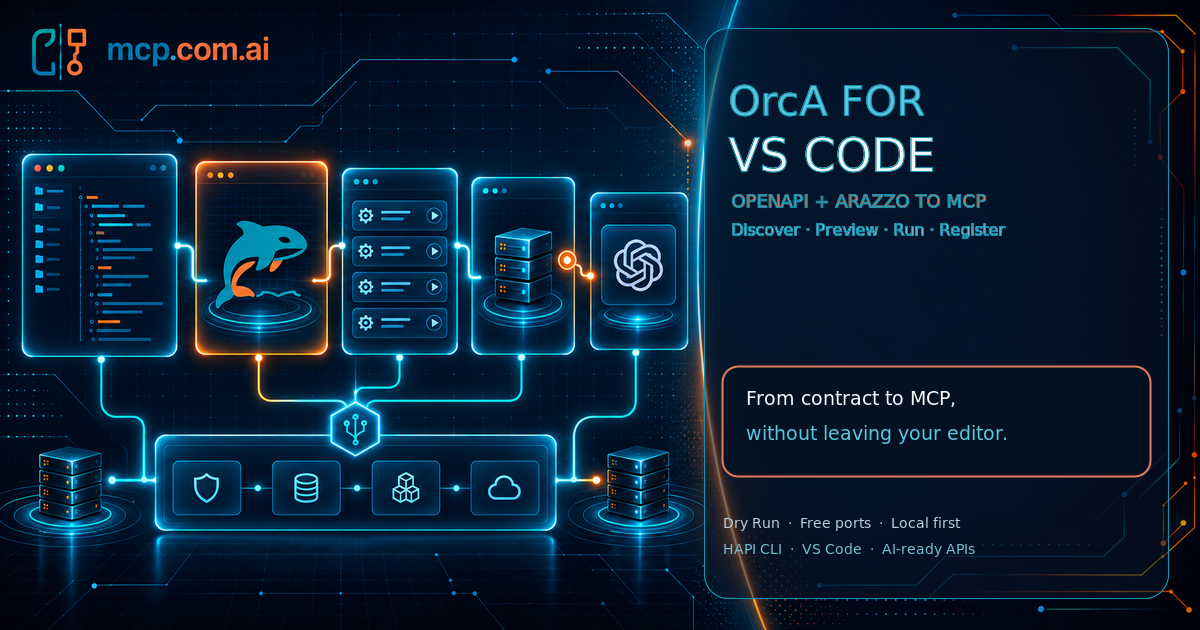
OrcA (Orchestrator for APIs and Agents) is the new VS Code extension of the HAPI MCP Stack. You open an OpenAPI or Arazzo contract, see the exact MCP tools an agent will get, run it as a local MCP server, and connect it to your AI assistant, without leaving VS Code.

Why an extension, and why now
The HAPI CLI already turns any OpenAPI or Arazzo document into an MCP server, with no code (see From OpenAPI to MCP to AI Agent). But a CLI is only one stop in the loop. You still have to find the right spec, check which tools it produces, start the server on a port nobody else is using, remember its URL, and wire it into your assistant.
Every one of those steps is a context switch, and context switches are where contracts and servers drift apart. OrcA removes them by keeping the contract, its tools, the running server and your assistant side by side.
What you get
Contracts, found for you. OrcA recognizes OpenAPI 3.x and Arazzo 1.1 documents by their content, not their file names. It lists them from your workspace and from your HAPI Home (~/.hapi/specs). Need a new one? New Contract… starts from a clean OpenAPI 3.1 or Arazzo 1.1 template.
An outline that follows your file. Paths and operations, schemas, security schemes, Arazzo workflows and steps. Click a node and OrcA selects its exact line, even in a 5,000-line spec.
Dry Run: see the tools before you serve them. One click shows the MCP tool list as a table, as JSON ready for a ChatGPT App submission, or as a Markdown agent system prompt with every tool already listed.
Run with HAPI, on a port that is actually free. OrcA starts hapi serve in a terminal and tracks the server in the MCP Servers view: provisioning → running (with its MCP URL) → stopped. If port 3000 is busy with another service, OrcA moves to the next free port instead of colliding.
Add to VS Code. When a server is running, one click registers it in .vscode/mcp.json, so GitHub Copilot, Claude and other MCP clients in VS Code can call your API immediately.
Deploy and manage. Deploy an OpenAPI contract as an MCP server by giving it a name. Your HAPI profile decides where it runs. Start, stop, restart, view logs and delete from the sidebar.
Arazzo, first-class. Author Arazzo 1.1 workflows with schema validation in the Problems panel. HAPI serves each workflow as one deterministic MCP tool, so the model doesn't have to improvise the sequence of calls.
Sixty seconds, start to finish
- Install OrcA from the VS Code Marketplace.
- Open an OpenAPI file (or OrcA: New Contract… → OpenAPI).
- Click Dry Run → Table to see the tools.
- Click Run with HAPI. The server turns running in MCP Servers.
- Click Add to VS Code, then ask your assistant to use the API.
Don't have the HAPI CLI yet? OrcA notices, and offers to install v1 for you with the official installer for your OS.
Local by default
OrcA's default local mode makes no network calls; your contracts and servers stay on your machine. Switch to remote mode when you want HAPI to host your MCP servers, and sign in from the status bar. Tokens are kept in VS Code's secret storage.
Goodbye runMCP extension, hello OrcA
OrcA replaces the runMCP VS Code extension, which is now deprecated. Everything it did, including sign-in, deploying and managing servers, and the OpenAPI outline, is in OrcA, alongside everything above.
Get started
- ⬇️ Install: search for OrcA in VS Code Extensions, or run
code --install-extension la-rebelion-labs.orca-mcp. - 📘 Guide: VS Code extension (OrcA) walks through the install, quickstart and how-tos.
- 🧭 Concepts: OrcA in the HAPI MCP Stack and How OrcA works.
- 🛠️ HAPI CLI: hapi.mcp.com.ai.
Your API contract is already the source of truth. With OrcA, it is also one click away from being an MCP server your agents can use.
Be HAPI, and enjoy building!